Why this matters
The webcast metadata shows up on SermonAudio listings and on our broadcaster page when we go live. Getting the title, speaker, and scripture right before each service means viewers see the correct info from the moment the stream starts, instead of seeing last week's details until someone fixes it.
You'll do this twice on Sunday — once before AM, then again before PM with the second service's details.
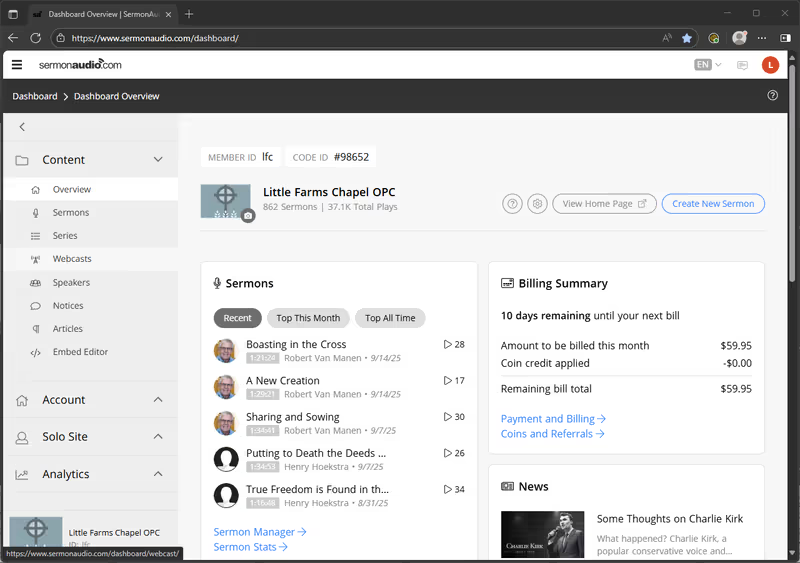
Open SermonAudio and click Webcasts
Go to sermonaudio.com/dashboard/webcast and log in if you're not already. The browser usually remembers the session — if it asks for credentials, use Keeper to fill them in. Leave this tab open — you'll come back to it when you go live.
In the left sidebar under Content, click Webcasts.
Update the metadata, then Apply Settings
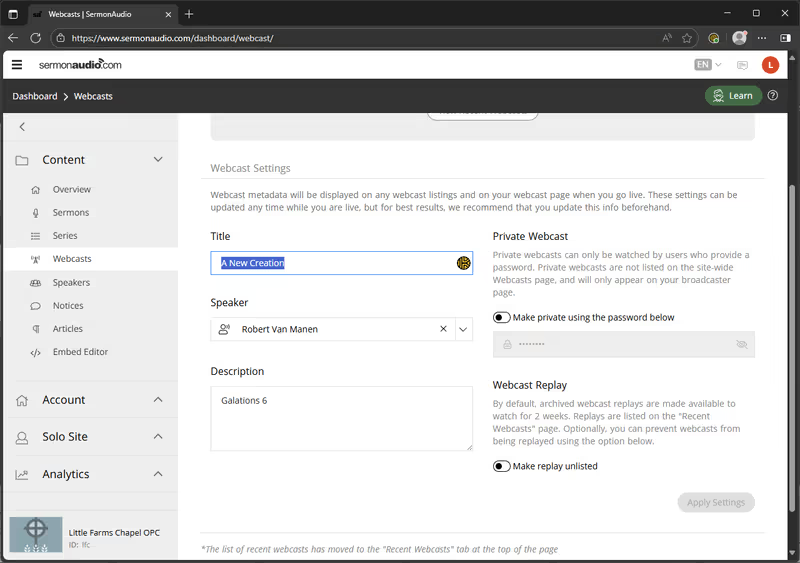
Three fields to fill in from the bulletin:
- Title: the sermon title for this service
- Speaker: who's preaching
- Description: the scripture reference (e.g.
Galatians 6)
Click Apply Settings at the bottom-right of the form. The button activates once you've made changes.
Repeat before PM
Between services, come back to this same page and update the three fields with the PM details. Click Apply Settings again.
If something's off
- Not logged in: sign in with the LFC SermonAudio credentials. If you don't have them, flag a tech.
- Apply Settings won't activate: make sure you've actually changed at least one field. The button only lights up after edits.
- Wrong info on the public page: come back here, fix the field, and re-Apply.